
July 28, 2026
Flow history
History entries for the most important flow activities are now available.
Key features:
- • The “Flow history” panel shows important flow activities, including:
- ∘ Created at/by
- ∘ Updated at/by
- ∘ Deployed at/by
- • You can open the flow history from the flow card’s “…” menu or by clicking the history icon next to the flow name in the flow designer.
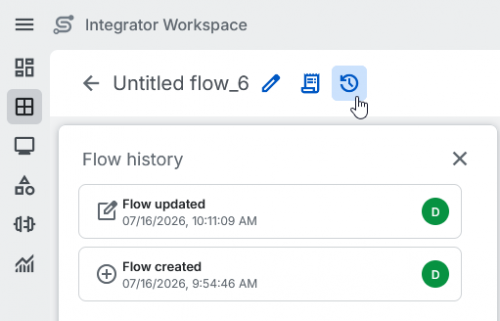
The flow history gives you clear visibility into the lifecycle of each flow, improving transparency and enabling better understanding and traceability of changes.
Projects > [Project] > [Flow] > Flow history button
July 22, 2026
AI assistance in the code editor
The code editor now provides integrated AI assistance to support mapping development. Right-click selected code and select an AI action to explain the code, suggest optimizations, or generate comments. The SIA assistant opens automatically and provides context-aware assistance based on the selected code.
You can find more information in our Integrator Workspace Help.
Projects > [Project] > Mappings > Code editor
July 1, 2026
Deployment changed from project to flow deployment
Deployments are now managed at the flow level, allowing you to deploy individual flows independently. This change increases flexibility, reduces deployment time, and minimizes the risk of unintended changes.
Key features:
- • All flows that were deployed with the old project deployment were migrated to the new flow deployment. No action or redeployment is required from you.
- • You can deploy or undeploy individual flows independently instead of deploying or undeploying all flows within a project.
- • By enabling the “Show all” switch, you can select additional flows for deployment.
- • You receive a toast notification indicating whether the flow deployment was successful.
- • If you select multiple flows for deployment and one fails, the others are still deployed.
- • Deployment status is now tracked per flow.
- • The “Activate” and “Deactivate” options have been removed as they are no longer needed for flow deployment.
- • You can start the flow deployment in several places:
- ∘ “Deploy flows” button in the flow overview page of a project: The deployment dialog shows all flows in the project. Select the flow you want to deploy.
- ∘ “…” menu on a flow card: The deployment dialog shows the selected flow. By enabling the “Show all” switch, you can add more flows if needed.
- ∘ Split button in an open flow: Choose “Save and deploy”. The deployment dialog shows the selected flow. By enabling the “Show all” switch, you can add more flows if needed.
Benefits:
- • Previously, no flows were deployed if one flow failed during project deployment. Now, all deployable flows are deployed even if one fails.
- • This new deployment model improves control, traceability, and agility by enabling more granular flow updates and reducing deployment risks.
- • It reduces unnecessary redeployment of unchanged flows and shortens deployment time.
Projects > [Project] > Deploy flows
Projects > [Project] > “…” on flow card > Deploy
Projects > [Project] > [Flow] > Save > Save and deploy
If you have any questions, please contact your local sales representative or contact us via integrator-workspace-feedback@seeburger.de.