
Introducing the new dunnings feature
We would like to introduce you to a new feature of the Invoice Delivery Service (IDS): You can now send dunnings in PDF file format to your invoice recipients.
Note: The dunning process is not technically linked to previously sent invoices. The system does not automatically generate or send a dunning notice to the recipient if an invoice is overdue. If you wish to send a dunning notice, you must initiate it through your ERP system and send it to Invoice Delivery Service, just as you would with PDF-only invoices.
Required metadata
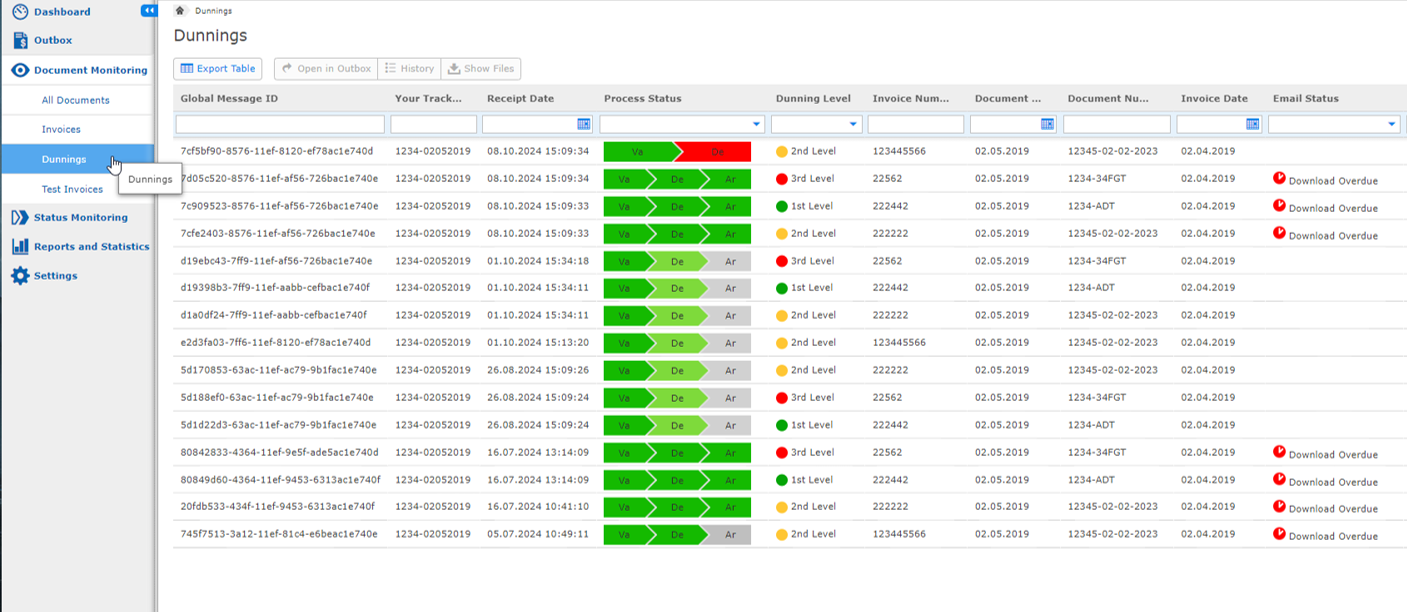
Depending on the metadata you provide in the “Document Settings” block (see example below), the column “Dunning Level” is displayed in two menu items:
- – “Outbox” > “Dunnings”
- – “Document Monitoring” > “Dunnings”
The “Dunning Level” column contains three dunning levels that specify the dunning iteration:
- – 1st dunning – 1st Level
- – 2nd dunning – 2nd Level
- – 3rd dunning – 3rd Level
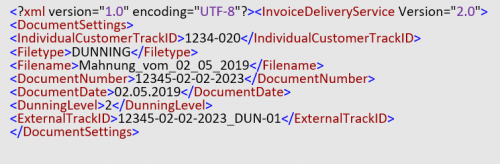
To integrate this into your system, you only have to extend the MiniXML structure used for metadata with the following fields:
| Document Setting | Column | Description |
| IndividualCustomerTrackID | Your Track ID | Use this field to set your reference, e.g., for SAP cases. |
| Filetype | Document Type | Indicate whether the file is an invoice or a dunning notice. |
| Filename | File | Use this field as you currently do for invoices. |
| DocumentNumber | Document Number | Your dunning number, similar to invoice number. |
| DocumentDate | Document Date | Your dunning date, similar to invoice date. |
| DunningLevel | Dunning Level | Specifies the dunning iteration, such as 1st, 2nd, or 3rd. |
| ExternalTrackID | – | You can enter another ID here. It is not shown in the “Invoice Delivery Service” App > “Document Monitoring” menu item. |
Below are the required fields for dunnings that you need to provide in the document settings, along with example values:
Note: Creating and adjusting the metadata in MiniXML will require modifications to your individual mapping. Please request support from our SEEBURGER Consulting team. This adjustment should be included as part of the onboarding process. Make sure to allocate sufficient time for testing the process on your end.
Invoice Delivery Service > Outbox > All Documents > columns “Your Track ID,” “Document Type,” “Document Number” and “Document Date”
Invoice Delivery Service > Outbox > Dunnings > columns “Your Track ID,” “Document Type,” “Document Number,” “Document Date” and “Dunning Level”
Dashboard
The “Dashboard” shows dunnings in the “All Documents” menu items and also allows you to see the status of them directly via the “Dunnings” drop-down filter.
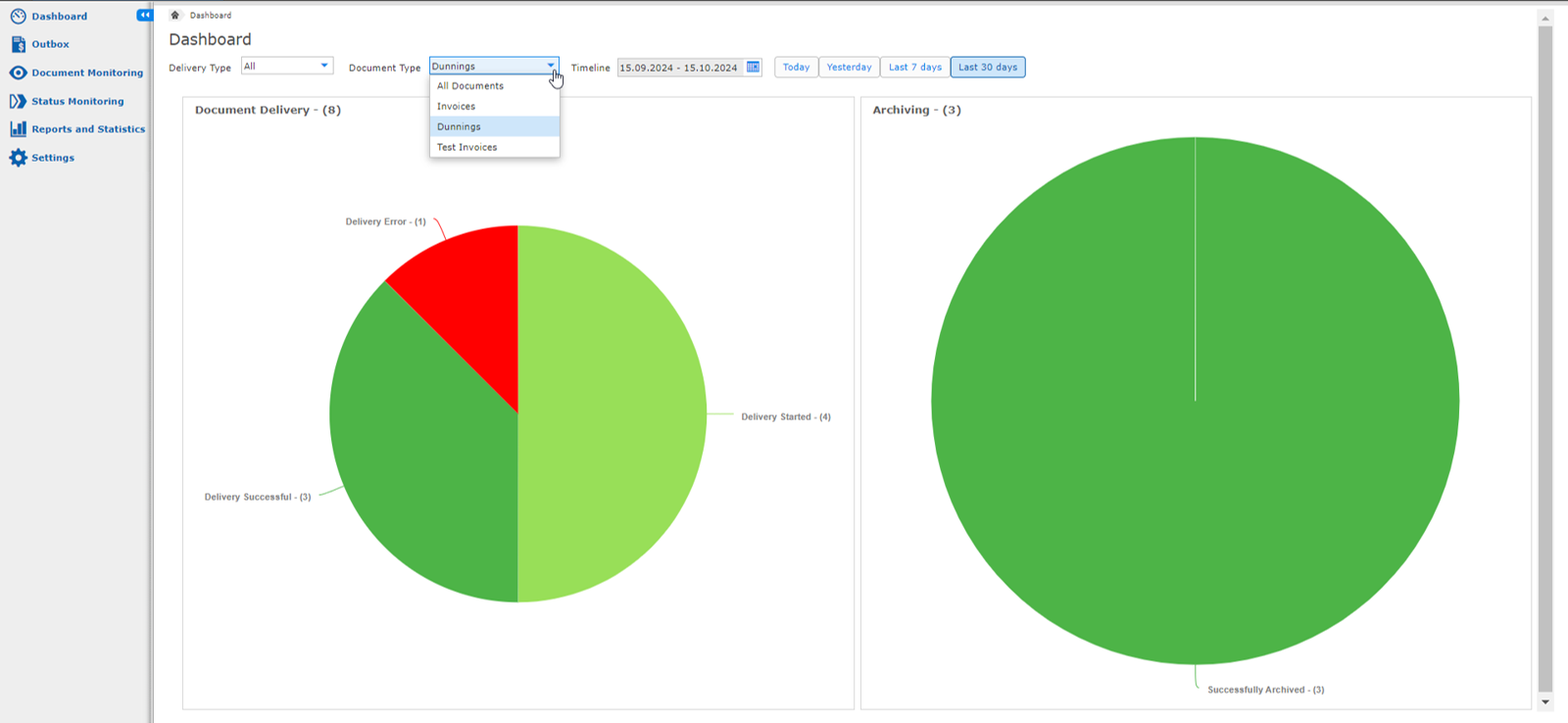
Also, the “Outbox” and the “Document Monitoring” menu items provide you a similar filter feature based on submenus.
As for invoices, you can directly jump from the “Dashboard” menu item to the prefiltered “Outbox” menu item and “Document Monitoring” menu item by clicking on the particular section in the pie chart.
Invoice Delivery Service > Dashboard > “Dunnings” Document Type
Invoice Delivery Service > Document Monitoring > All Documents > columns “Your Track ID”, “Document Type”, “Document Number”, and “Document Date”
Invoice Delivery Service > Document Monitoring > Dunnings > columns “Your Track ID”, “Document Type”, “Document Number”, “Document Date” and “Dunning Level”
Settings
You can also use the “Settings” > “Basic Settings” > “Delayed Delivery of Dunnings” section to postpone the delivery of dunnings separately from the invoices and the test invoices.
The “Display of Overdue Dunnings” section in the “Settings” > “Basic Settings” menu item allows you to configure how the current delivery status is displayed according to your preferences. Here, you can specify the number of days to add to the document date, after which dunnings will be displayed as overdue in both the “Outbox” and the “Document Monitoring” menu items.
Note, that the status will never be “Download overdue” if the dunning was sent as an email attachment.
Invoice Delivery Service App > Settings > Basic Settings > “General (Email & Peppol)” section > “Delayed Delivery of Dunnings” subsection
Invoice Delivery Service App > Settings > Basic Settings > “Email Delivery” section > “Display of Overdue Dunnings” subsection
Email templates
Use the new “Email Templates” in the “Settings” to set customized email texts for dunning letters:
- – “Dunning with Download Link”
- – “Dunning with Download Link & Attachment”
These templates are available in English, German, and French, offering the same configuration options as those used for invoices. You can also test the email templates in advance.
Invoice Delivery Service > Settings > Email Templates > “Dunning with Download Link” template
Invoice Delivery Service > Settings > Email Templates > “Dunning with Download Link & Attachment” template
Archiving
Archiving works in the same way for dunning notices as it does for invoices. If you already completed the onboarding process for the IDS successfully, you do not need to change anything.
Alisa Scholz (07252/96-1476, a.scholz@seeburger.de) will be happy to answer any questions you may have.