
March 27, 2026
Azure Blob Connector: support for core blob operations
The new Azure Blob Connector lets you connect to your Azure Storage account and manage files directly in blob containers.
This functionality allows you to upload, download, list, and delete blobs without leaving the platform.
Key features:
- ⦁ Upload files to a container using the “Create” operation. Specify the container name, blob name, and virtual file path.
- ⦁ Download files by using the “Get” operation to retrieve blob content.
- ⦁ List blobs in a container using the “List” operation to view file names and verify stored content. Apply fine-grained filtering using prefix, delimiter, and include or exclude patterns.
- ⦁ Delete files by using the “Delete” operation to keep your storage clean and organized.
- ⦁ Configure authentication, container selection, and operation settings in the connector setup under Azure Blob.
Benefits:
- ⦁ Manage your Azure Storage without switching tools.
- ⦁ Streamline workflows by handling your files in one place.
- ⦁ Support data pipelines, automate tasks, and keep cloud files up-to-date.
You can find more information in our Integrator Workspace Help.
Project > Flows > Create flow > Add flow step > Connectors
March 23, 2026
Assets: “Add to group” for standalone connectors
You can now assign standalone connectors (connectors that are not part of any group yet) to a connector group directly from the “Connectors” overview. This provides a quick shortcut for grouping connectors without opening the full “Edit connector” dialog, which contains additional settings not related to grouping.
Key features:
- ⦁ A new “Add to group” option is available in the “…” menu of each standalone connector card.
- ⦁ You can choose to:
- ∘ add the connector to an existing connector group, or
- ∘ create a new connector group on the fly, including a name, description, and an optional custom logo.
- ⦁ The dialog shows only the relevant grouping options, allowing fast and focused assignment.
- ⦁ After saving, the connector is immediately assigned and the overview updates automatically.
Benefits:
- ⦁ Quickly organize standalone connectors without navigating through the full “Edit connector” settings.
- ⦁ Reduce the number of steps required to maintain a well‑structured connector landscape.
You can find more information in our Integrator Workspace Help.
Assets > Connectors > … menu of a connector > Add to group
March 20, 2026
Testing enabled for “Chat trigger” flows
The recently released “Chat trigger” flow is now testable via the “Test flow” button.
Key features:
- ⦁ Instead of the usual dialog, a chat window opens next to the execution panel.
- ⦁ The chat window stays open while testing, allowing you to see the result of the test execution directly.
This allows you to test the behavior of a flow with a chat trigger before you deploy it.
You can find more information in our Integrator Workspace Help.
March 17, 2026
Assets: Swagger UI for connectors
You can now use the Swagger UI to view the structure of a connector. This view helps you check available endpoints and request or response details before you work with the connector.
Key features:
- ⦁ The connector details view now includes an additional “Swagger UI” tab that displays the structure of a connector.
- ⦁ The Swagger UI shows the connector’s endpoints grouped by method. Each entry expands to show details such as paths, parameters, and description.
Benefits:
- ⦁ Review a connector before updating it.
- ⦁ Check which operations a connector provides.
- ⦁ Understand the structure of connector you plan to use.
You can find more information in our Integrator Workspace Help.
Assets > Connectors > Connector details > Swagger UI tab
March 9, 2026
Assets: Enhanced search with highlighting
You can now search for assets more effectively using both the name and short description of an asset. In addition, matched terms are highlighted directly in the results list, helping you quickly understand why each item appears.
Key features:
- ⦁ The asset search now takes the name and short description fields into account.
- ⦁ Matching terms are highlighted in the results list so you can immediately see what part of the asset triggered the match.
- ⦁ When entering multiple search terms, the search treats them as OR, showing all assets that match any of the terms.
- ⦁ Improved relevance and visibility when navigating large asset lists.
Benefits:
- ⦁ Find assets faster, even when names are technical or abbreviated.
- ⦁ Immediately understand why a result appears in your search.
- ⦁ Navigate long lists more efficiently thanks to clearer visual cues.
You can find more information in our Integrator Workspace Help.
Assets > Connectors
Assets > Templates
March 3, 2026
Search functionality for connectors in asset panel
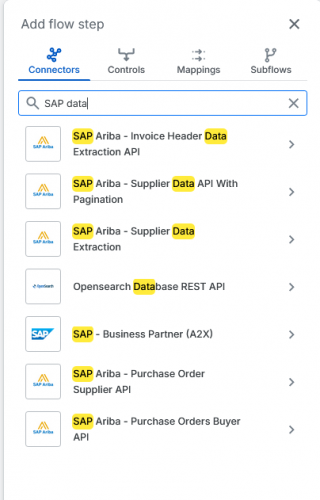
A new search functionality has been added to the asset panel to allow you to search connectors more efficiently.
Key features:
- ⦁ You can search all three levels of connectors individually.
- ⦁ When you enter multiple search terms, they are treated as OR, so you see results matching any of the terms.
- ⦁ Results that match more of your search terms appear higher in the list.
- ⦁ Matching terms are highlighted for better visibility.
- ⦁ You will see a “No results found” message when no connectors match your search.
- ⦁ Additional improvements to the assets panel:
- ∘ The panel previously called “Assets” has been renamed to “Add flow step” to distinguish it from the “Assets” menu item.
- ∘ The “Upload connector” and “Create subflow” buttons have been moved to the bottom of the “Add flow step” panel for easier access.
- ∘ You can now view the short description and version of a connector via an info icon that appears on hover.
These enhancements help you find the right connector faster, improve your overall workflow efficiency, and give you clearer feedback when no search results are available.
If you have any questions, please contact your local sales representative or contact us via integrator-workspace-feedback@seeburger.de.