

Introducing the “Action-Button”
With SP 154, the “Action-button” in CMA sheets is released. This feature improves usability in your workflow.
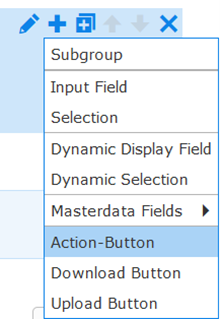
With the “Action-button”, you can trigger external validations directly from your CMA sheets without leaving the page. This saves time and increases efficiency by avoiding the need for multiple tabs and windows.
More importantly, you can create multiple action buttons with different endpoints and configurations from your CMA sheets. You can configure individual endpoints, URLs, variables, and credentials for each action button, making it easy to customize your workflow to your specific needs.
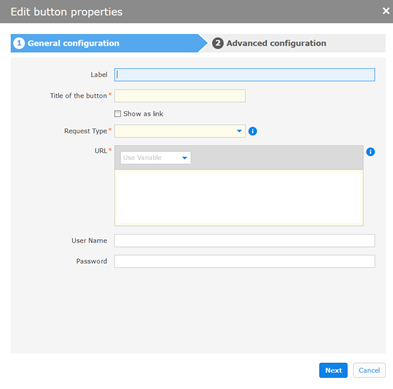
The feature also supports background processing, meaning you can continue working on your sheets even if there are errors during the validation process. This ensures that you never lose valuable time and can continue working without interruption.
In Designer View: Add > Action-Button
Introducing the participant migration state feature
With SP 154, a new feature designed to enhance participant migration between surveys is released.
You can expect:
- • Improved participant visibility: When migrating participants from one survey to another, the participants will no longer be deleted from the original project. Instead, they will now appear with a new status, “Migrated”, ensuring full visibility of their history and data.
- • Data and communication logs: All captured data, logging details, and email communication will remain accessible in the original project even after migration. This powerful functionality allows you to look up the status of participant progress and data entered before they were migrated to a new project.
- • Enhanced copy wizard dialog: The copy wizard has been updated to include both the email state and participant state, allowing you to easily filter and manage participants based on their current status in the project. This change allows for a more seamless and transparent transition of the participant to a new project.
- • Detailed migration logging: Both the original and new projects will now have a dedicated log entry noting the migration of participants, providing clear records for audit and review purposes.
This new feature simplifies participant management, improves data accessibility, and ensures clarity throughout the migration process.
Project Details > “Participants” tab > “Participant State” column
Introducing the dynamic REST combo box feature
With SP 156, a new feature is released to enhance data selection flexibility within your projects. The dynamic REST combo box allows the dynamic population of combo box fields through REST API calls.
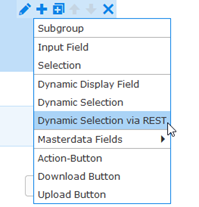
Highlights:
- • Dynamic data retrieval: Unlike static dropdowns, the dynamic REST combo box fetches data from external REST services in real-time, ensuring your selections are always up-to-date.
- • Integration with Maptable Manager: This feature initially integrates with the Maptable Manager REST service, making it easy to configure your data tables.
How it works:
- 1. Global configuration: Start by setting up a Maptable Provider within CMA, where you can define the REST service URL, user credentials, and filtering conditions.
- 2. Form integration: Once configured, the dynamic REST combo box can be used within your forms, automatically fetching and displaying data from the specified REST service.
- 3. Real-time testing: Easily test your configurations within CMA to ensure everything works as expected before going live.
This new feature is perfect for projects that require real-time data selection, such as inventory management, user directory lookup, or any scenario where the data list changes frequently.
We are continuously expanding this functionality to support more services and use cases in the future.
In Designer View: Add > Dynamic Selection via REST
Introducing the editable icon feature
With SP 158, a new feature is released in the CMA — editable project icons. This feature allows you to customize your projects by uploading custom icons directly from the project settings.
Key highlights:
- • Personalize your projects: You can now upload custom icons for your CMA projects, replacing the default icon with one that better represents your project or brand.
- • Simple and intuitive: Upload and preview your new icon in the project settings. Click the upload button, select your icon, and save your changes. Your new icon will immediately appear across all relevant project pages.
- • Versatile usage: The editable icon feature is available for both self-service and survey-based projects, providing flexibility for all CMA users.
Enhance your projects’ visual identity with custom icons and make them stand out.
Project Details > “Settings” tab > “Project Icon” section > “Upload New Icon” field
Nadja Koshofer (07252 96-1428, n.koshofer@seeburger.com) will be happy to answer any questions you may have.