
August 22, 2025
New variable for simplifying flow configuration
To simplify the flow configuration, we introduce the new $current.payload variable. The variable contains the most relevant payload you might need for the current step configuration. Depending on the previous step, it automatically writes payload data to $current.payload. This helps you to simplify flow design by providing quick access to the values most likely needed in the current context. Use $current.payload whenever you want to reference data that has just been produced in the preceding step.
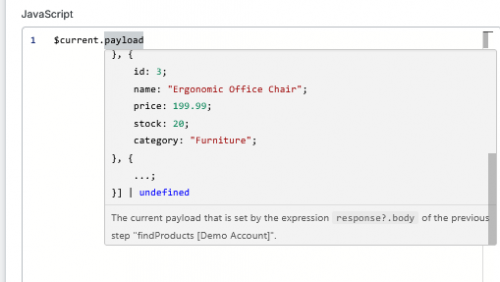
Highlights:
- ⦁ Depending on the step, the variable is overwritten, set to
null, or the previous payload is kept (details available soon in the documentation). - ⦁ Hovering over “payload” shows you how the payload is set. It shows real data if you execute a “step test” of the previous step.
- ⦁ You will have fewer configuration errors and less reconfiguration if you change steps in the flow.
- ⦁ Your old flows still work, no need to adapt the configuration.
- ⦁ The new variable is used automatically if you add new flow steps to your flow.
Customizable HTTP response for HTTP trigger
You can now define whether your flow should return an HTTP response or not. If you choose to return a response, a new flow element called “Return HTTP response” is available. This allows you to:
- ⦁ Specify custom HTTP headers
- ⦁ Define the HTTP body content
This gives you greater control over how your flow interacts with external systems via HTTP, making integrations smoother and more flexible.
Integrator Workspace > Projects > Flow > HTTP trigger
Automatic schema selection upon map creation
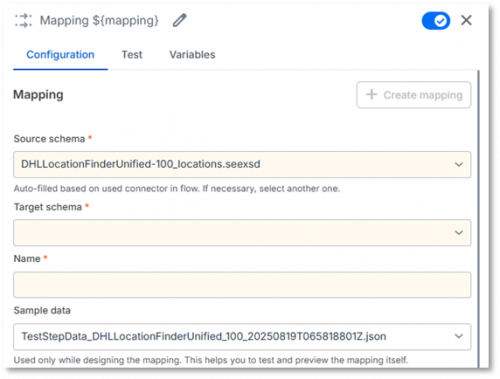
We have made it easier and faster to create new mappings by automatically pre-filling schema information when APIs are already configured in your flow.
Highlights:
- ⦁ Auto-population: If a single input/output API is present, the respective schema is auto-filled in the mapping dialog.
- ⦁ Schema naming: The naming follows the convention
APIname-[version]_SchemaName-[version]. - ⦁ User control: Pre-filled schemas are editable as before.
- ⦁ If no API: The field remains empty if no API is available.
- ⦁ If multiple APIs: If multiple APIs are available, auto-selection is skipped, and the user is notified.
- ⦁ Duplicates: On save, users can rename, overwrite, or use an existing schema.
Automatic availability of test step data in mappings
You can now automatically use data from executed API test steps when creating or editing mappings. This reduces manual work and avoids errors from copy and paste.
Key features:
- ⦁ When you create a new mapping after an API test step, the test data is automatically stored and available in the mapping configuration.
- ⦁ For existing mappings, you can select test step data from the “Sample data” drop-down menu.
- ⦁ Test step data files follow the naming convention
TestStepData_[APIName]_[Version]_[CurrentDateTime].ext. - ⦁ The most recent API test step data is always shown at the top of the drop-down menu.
This helps you save time when designing mappings. You do not have to copy and paste data manually and you reduce the risk of human errors.
How to access
In a flow, execute an API test step and then create or edit a mapping. The “Sample data” drop-down menu in the mapping configuration will show the available test step data.
Schema-based test data generation
Test data can now be generated from the source schema when you create a new mapping. This ensures that you always have data available during design time.
Key features:
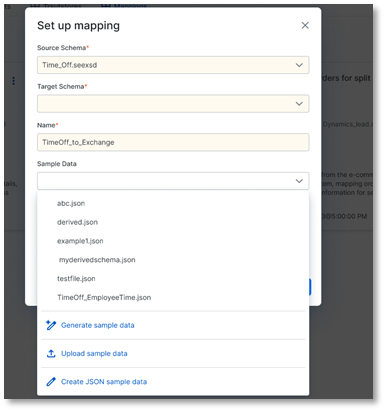
- ⦁ When you create a new mapping, one file with minimal test data and one file with maximal test data are generated based on the source schema.
- ⦁ You can generate additional test files from the “Sample data” drop-down menu or in the “Edit mapping” dialog.
- ⦁ File names follow the convention
GeneratedData_[SchemaName][Version][CurrentDateTime].ext. If a file with the same name exists, a numeric suffix is added. - ⦁ Generated test data respects schema data types such as string, integer, or Boolean.
- ⦁ Artificial intelligence may be used to create meaningful and diverse values. If artificial intelligence is not available, the system falls back to basic generation.
This feature ensures that relevant test data is always ready when you design mappings. You no longer need to construct test data manually, and you can switch between multiple generated files.
How to access:
When you create a new mapping, test data files are generated automatically. You can also generate additional test files from the “Sample data” drop-down menu or in the “Edit mapping” dialog.
August 1, 2025
Delete connectors
You can now delete connectors uploaded by you or your organization.
This helps you manage and clean up outdated or unused connectors, keeping your organization’s connector list organized and relevant.
You can find more information in our Integrator Workspace Help.
Integrator Workspace > Assets > Connector you want to delete > Edit > Delete
Seamless updates with our new PWA upgrade
We have made an important upgrade behind the scenes: our Integrator Workspace (IWS) is now a Progressive Web App (PWA)!
This change is all about delivering a smoother, more reliable update experience.
How it works:
- 1. The app continuously checks (only if the browser tab is active) for available updates.
- 2. An available update is loaded in the background.
- 3. The update will be performed automatically when you refresh the page in your browser or navigate to another page within the Integrator Workspace.
Benefits:
- ⦁ Updates are now faster and more seamless, with less disruption to your workflow.
- ⦁ The app is more resilient and performs better under varying network conditions.
- ⦁ You do not need to do anything – just keep using the app as usual.
- ⦁ Minimizes data loss due to allowing you to save your changes before the update is executed.
- ⦁ You will always be using the latest version of the app – no manual refreshes or reinstallations needed.
Browser-specific functionality:
When you open the Integrator Workspace using Google Chrome or Microsoft Edge, the browser offers you to install the Integrator Workspace as an app in the address bar.
If you install it, a shortcut will be created on your desktop so you can easily open the app.
Not installing it will not have any negative impact.
Google Chrome:

Microsoft Edge:

To uninstall it, open the Integrator Workspace as app and open the settings via the dots menu at the top of the window.
More options to design your flow with a while loop
To enhance the capabilities of designing a flow, we introduced the new while loop. It allows you to repeat the execution of flow steps as long as a condition evaluates to true.
The while loop consists of two options:
- ⦁ Evaluate the condition after each loop iteration (the loop is executed at least once, even if the condition is not met).
- ⦁ Evaluate the condition before each loop iteration (the loop might be skipped if the condition is not met).
Integrator Workspace > Projects > Flow > Assets > Flow controls